
Kordox Companion for Chrome
Bring pages, sources and original files into the work you are already doing. Companion connects your browser to your Kordox account and ventures.
Install version 0.3.2
Download the production extension ZIP.
The Chrome Web Store listing is being prepared. This download is an unpacked release, not an automatic Store installation.
- Extract the ZIP into a folder you will keep.
- Open
chrome://extensions, enable Developer mode, then choose Load unpacked and select that folder. - Open Kordox, sign in, and select your organization. The extension uses this same session; it has no separate password.
- Pin Kordox Companion from Chrome's Extensions menu.
Requires Chrome 116 or newer. To update an unpacked installation, replace the files in its folder and click Reload in chrome://extensions. Reload the Kordox web tab too so the extension reconnects. Do not install the staging package for production work.
Choose the right action
| Action | Result | Original file uploaded? |
|---|---|---|
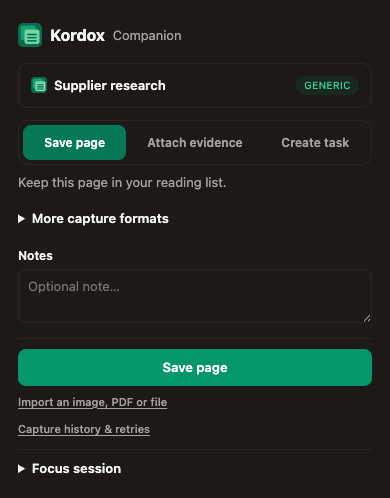
| Save page | A reading-list reference. More capture formats include a Doc with available page text and its link. | No |
| Attach evidence | A source link, quote and notes attached to an existing task, Doc, lead or customer. | No |
| Create task | A task referencing the page, in the selected venture. | No |
| Import an image, PDF or file | The original stored privately in a new Doc, with a preview or file block. | Yes |
Use the venture and record search fields to find the destination. More capture formats includes follow-ups, leads, Docs and research collections. Optional observations and expected business impact stay collapsed until needed. Estimates are research notes, not accounting entries.
Import a PDF, image or document
- Open the PDF/file page and the extension. Choose Import this file into a document or Import an image, PDF or file. You can also right-click an image or file link and choose Import file into Kordox Doc.
- In the separate import tab, click Load file from this page, or select a file you have downloaded.
- Review its name, the document title, venture and notes. Click Import file into a document.
- Keep the tab open until the success message, then choose Open document in Kordox.
Imports support PDF, PNG, JPEG, GIF, WebP, Word (.doc, .docx), Excel (.xls, .xlsx), PowerPoint (.ppt, .pptx), TXT, CSV, MP3 and MP4, up to 25 MB per file, subject to your workspace's storage quota and permissions. HTML, SVG, executables and macro-enabled Office extensions are excluded.
Images display inline. PDFs have a page preview and an Open link. Other documents remain downloadable originals; Office conversion is not included. Browser support determines playback of MP3/MP4 files.
There is no automatic OCR or PDF text extraction. Previewing a PDF does not make its contents searchable or send it to an OCR service. Doc titles and notes remain searchable.
A Google Docs/Sheets/Slides editor URL is a webpage, not the original Office/PDF file. Download/export the desired format in Google Drive first, then select that file in the importer. Sources that require sign-in, redirect, or block direct reads may also need this step. Direct file reads omit website credentials. Import never silently replaces a failed upload with a saved link.
Save status and recovery
Ordinary captures enter a local queue before the extension confirms they are queued. Queued means retained locally; Saved means confirmed by Kordox. Open Capture history & retries to inspect failures. Captures keep their original account and organization; switching organizations does not move queued data into the new organization.
File imports need an internet connection and are not in the offline queue. If uploading succeeded but Doc creation failed, Continue creating document reuses the stored file. If an upload's result is unknown, check Files in Kordox before starting another import; the extension does not automatically upload it again.
The Settings action Clear local extension data first attempts to sync queued captures, then removes local capture/cache/preferences data while retaining the session. It does not delete records already saved in Kordox. Uninstalling removes extension-local data; delete server records in Kordox separately.
Work while browsing
Open workspace opens a side panel with venture-filtered work and research Docs. Review AI-suggested tasks before creating them, including title, priority, date and assignee. AI extraction sends the selected text to Kordox's AI service when you request it. You do not need AI to save pages or import originals.
Focus sessions can log time to an existing task. Research comparisons, custom-field mapping, financial comparisons and optional public-page monitoring are in the Kordox web app, opened from the extension.
Gmail and privacy
The Gmail banner is enabled by default. On an opened Gmail thread, it reads sender and message details locally and sends the sender address to Kordox for a CRM match. Choosing a lead/task capture sends the associated message content to Kordox. Disable Gmail context banner in extension Settings and reload Gmail to stop the feature. This browser banner is separate from connecting Gmail through the web app's email connector.
Companion stores the Kordox session token, account/organization identifiers, settings, cached records and pending captures locally. Imports retain recovery metadata locally; original file bytes are uploaded to Kordox storage rather than kept in the capture queue. See the extension privacy disclosure for data use, providers and controls.
Troubleshooting
- Not connected: sign in on the production web app and reload that tab after installing/updating the extension. Complete MFA if your account requires it.
- No ventures or records: check the selected organization, membership and permissions, then refresh.
- Blocked source: download the original and choose it in the import tab.
- PDF preview unavailable: use Open to view the original, check access and reload. A damaged or password-protected PDF may not render inline.
- Local PDF /
file://page: open the importer and select the local file. Page capture itself supports HTTP(S) pages.
For help, use Kordox's feedback and bug reporting. Include the extension version and the failed action, but never send session tokens or private files in a public report.